Stock Synchronization
Guide for automatic stock synchronization from SmartBill to Shopify.
Plan Required
Automatic stock synchronization requires a Basic plan or higher. Check the Subscriptions page.
What Is Stock Synchronization?
When stock changes in SmartBill (goods receipt, invoicing, transfer between warehouses), the application automatically updates the quantities in Shopify. This way, your store always displays the actual stock levels.
Benefits:
- Real-time updates — stock is synced immediately after changes in SmartBill
- Overselling prevention — customers cannot order out-of-stock products
- Multi-warehouse support — each SmartBill warehouse can be mapped to a Shopify location
Enabling Automatic Synchronization (from Settings)
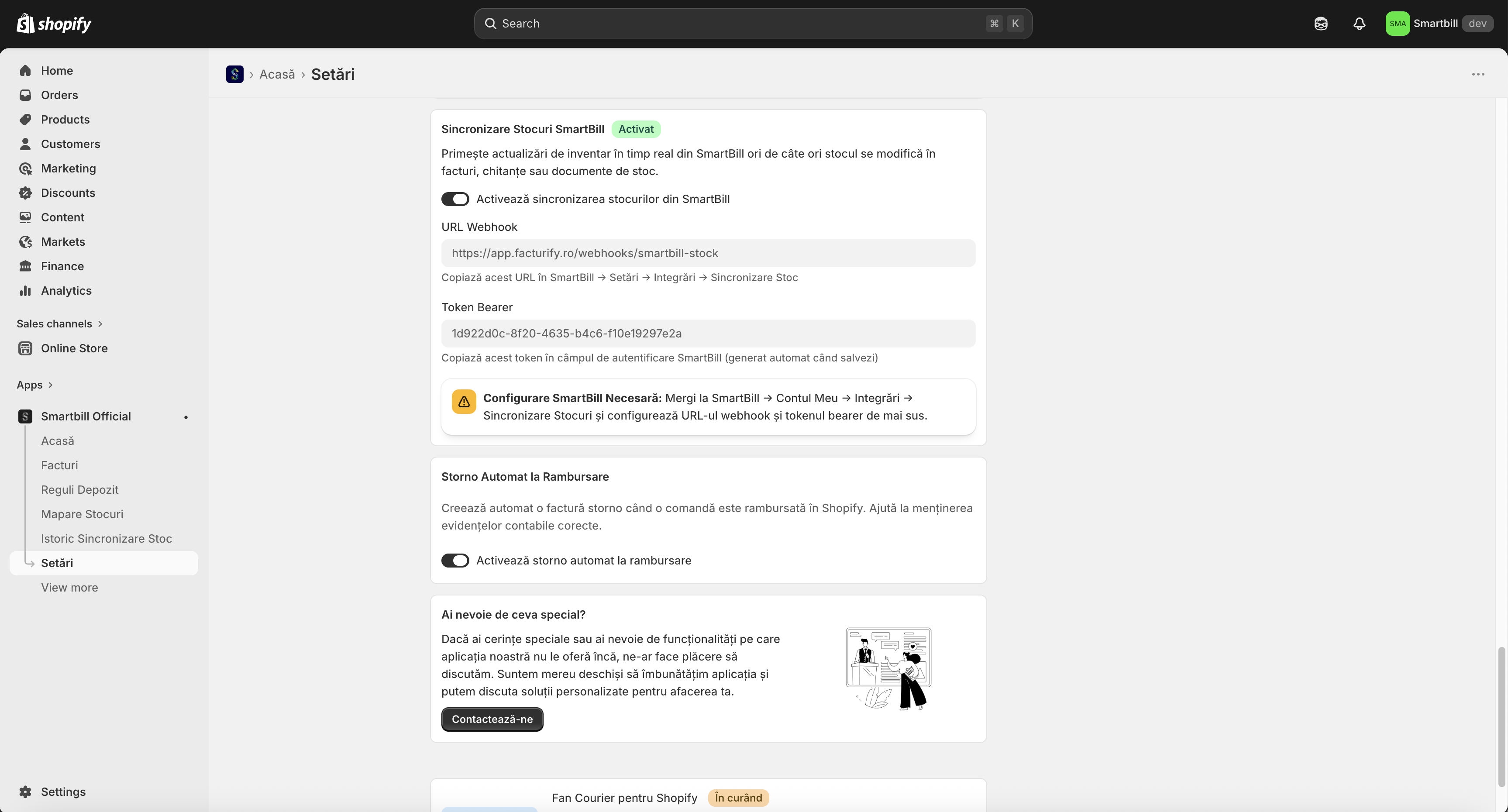
Automatic synchronization is enabled from the Settings menu of the application, under the “SmartBill Stock Sync” section. After activation, the application generates a URL and a token that you need to copy into SmartBill.
- Go to Settings → SmartBill Stock Sync
- Enable the “Stock Sync” toggle
- Save — the URL and Authentication Token are generated automatically
- Copy the URL and Token (you will use them in the next step in SmartBill)
How it works
Every time stock changes in SmartBill (goods receipt, invoicing, transfer), SmartBill automatically sends a notification to the application with the new quantities. The application then updates them in Shopify.
SmartBill Configuration
After activation, configure SmartBill to send stock notifications to the application:
- Go to SmartBill.ro → Integrations → Stock Synchronization
- Paste the URL copied from the application
- Paste the Authentication Token copied from the application
- Click “Test connection” to verify
- Click “Save”

Verification
After saving, click “Test connection” in SmartBill. If the test succeeds, automatic synchronization is configured correctly.
Location Mapping (Multi-Warehouse)
If you have multiple warehouses in SmartBill, you need to specify which warehouse corresponds to which Shopify location:
- Primary warehouse — automatically syncs to the primary Shopify location
- Secondary warehouses — must be manually mapped to the corresponding locations
- Unmapped warehouses — are ignored (do not update Shopify)
Details
For complete information about mapping, see the Location Mapping page.
Full Sync and Stock Activation
After configuring synchronization, two important steps are required:
1. Full Sync
Synchronizes all products from SmartBill with Shopify. Click the “Full Sync” button on the Stock Synchronization page. The application downloads all stock levels from the SmartBill warehouse and updates them in Shopify.
Use during initial setup, after major changes in SmartBill, or for periodic verification.
2. Activate Stock on Locations
Activates Shopify locations on products so that stock can be synced per location. Click the “Activate Stock” button. Without this step, Shopify does not allow stock updates on individual locations.
Required only once, during the initial setup.
When to use Full Sync
- During initial setup (to align stock levels)
- After major changes in SmartBill
- For periodic verification
Synchronization Logs
All synchronizations (automatic and manual) are logged. Go to Stock Synchronization from the menu to view:
- Product code and product name
- Warehouse the stock comes from
- Quantity updated in Shopify
- Status — green (success) or red (error)
- Date and time of synchronization
Product Matching: SKU vs Barcode
The application looks up products in Shopify by SKU or Barcode (configured in Settings → Product Code Source):
SKU (Recommended)
The product code from SmartBill must be identical to the SKU in Shopify.
Barcode
The product code from SmartBill must be identical to the Barcode in Shopify.
Automatic fallback
If the product is not found using the configured method, the application automatically tries the alternative method (SKU → Barcode or vice versa).
Common Issues
Connection test fails
Verify that synchronization is enabled in Settings. Copy the URL and token from the application again and update them in SmartBill. Check that your plan includes stock synchronization.
Product not found in Shopify
Verify that the SKU (or barcode) in SmartBill is identical to the one in Shopify — no extra spaces or different characters. Make sure the product exists in Shopify and has “Track quantity” enabled.
Secondary warehouse does not sync
Secondary warehouses must be mapped to a Shopify location. Go to Location Mapping and create the required mapping.
If the issue persists
Check the synchronization logs for error details or contact support at support@facturify.ro.